JB
Jordan Brown
Fri, Oct 17, 2025 5:11 PM
In a GitHub issue, a commenter had trouble adding a screen shot to the
issue, and that led into a small discussion of how to take and add
screen shots. It was off-topic for the issue, but seems worth talking
about, for both GitHub and e-mail.
Since I'm writing the first message I get to lead off with my favorite
two answers. I'm on Windows and so the specific keystrokes are
Windows-centric, but one hopes that other platforms have analogs.
- Win+Shift+S. Lets you select a rectangular region of the screen,
and puts it on the clipboard. Then paste. Good for ad hoc images
of OpenSCAD models, and for showing snippets from the UI.
- Alt+PrtSc. Copies the current window to the clipboard. Then
paste. Good for showing the whole picture. (But this comes in a
distant second, because you can use Win+Shift+S and just select the
whole window, if you don't care too much about getting the
boundaries exactly right.)
Why not File/Export/Export as Image? 99%+ of the time I want to paste
the result, and don't need to keep a file. Getting the window exactly
the right size is a pain, especially for small images (which is what I
usually want).
Why not Edit/Copy viewport image (Ctrl+Shift+C)? Window size, as
above. Also, has a small bug along the top and right edges.
Why not PrtSc? My screen is 7680x2160; I never want that many pixels.
There used to be an issue with transparency, but today I can't duplicate
it. Ref #3828 https://github.com/openscad/openscad/issues/3828. It
affected Copy-viewport-image and, I believe, Export-as-Image, but not
Win+Shift+S. Strangely, I can't duplicate it even with older
OpenSCADs. Still, if you are finding that transparent objects are
strangely faint, that might be it.
In a GitHub issue, a commenter had trouble adding a screen shot to the
issue, and that led into a small discussion of how to take and add
screen shots. It was off-topic for the issue, but seems worth talking
about, for both GitHub and e-mail.
Since I'm writing the first message I get to lead off with my favorite
two answers. I'm on Windows and so the specific keystrokes are
Windows-centric, but one hopes that other platforms have analogs.
* Win+Shift+S. Lets you select a rectangular region of the screen,
and puts it on the clipboard. Then paste. Good for ad hoc images
of OpenSCAD models, and for showing snippets from the UI.
* Alt+PrtSc. Copies the current window to the clipboard. Then
paste. Good for showing the whole picture. (But this comes in a
distant second, because you can use Win+Shift+S and just select the
whole window, if you don't care too much about getting the
boundaries exactly right.)
Why not File/Export/Export as Image? 99%+ of the time I want to paste
the result, and don't need to keep a file. Getting the window exactly
the right size is a pain, especially for small images (which is what I
usually want).
Why not Edit/Copy viewport image (Ctrl+Shift+C)? Window size, as
above. Also, has a small bug along the top and right edges.
Why not PrtSc? My screen is 7680x2160; I never want that many pixels.
There used to be an issue with transparency, but today I can't duplicate
it. Ref #3828 <https://github.com/openscad/openscad/issues/3828>. It
affected Copy-viewport-image and, I believe, Export-as-Image, but not
Win+Shift+S. Strangely, I can't duplicate it even with older
OpenSCADs. Still, if you are finding that transparent objects are
strangely faint, that might be it.

KC
Kevin Cole
Fri, Oct 17, 2025 5:40 PM
In a GitHub issue, a commenter had trouble adding a screen shot to the issue, and that led into a small discussion of how to take and add screen shots. It was off-topic for the issue, but seems worth talking about, for both GitHub and e-mail.
Since I'm writing the first message I get to lead off with my favorite two answers. I'm on Windows and so the specific keystrokes are Windows-centric, but one hopes that other platforms have analogs.
- Win+Shift+S. Lets you select a rectangular region of the screen, and puts it on the clipboard. Then paste. Good for ad hoc images of OpenSCAD models, and for showing snippets from the UI.
- Alt+PrtSc. Copies the current window to the clipboard. Then paste. Good for showing the whole picture. (But this comes in a distant second, because you can use Win+Shift+S and just select the whole window, if you don't care too much about getting the boundaries exactly right.)
Why not File/Export/Export as Image? 99%+ of the time I want to paste the result, and don't need to keep a file. Getting the window exactly the right size is a pain, especially for small images (which is what I usually want).
Why not Edit/Copy viewport image (Ctrl+Shift+C)? Window size, as above. Also, has a small bug along the top and right edges.
Why not PrtSc? My screen is 7680x2160; I never want that many pixels.
There used to be an issue with transparency, but today I can't duplicate it. Ref #3828. It affected Copy-viewport-image and, I believe, Export-as-Image, but not Win+Shift+S. Strangely, I can't duplicate it even with older OpenSCADs. Still, if you are finding that transparent objects are strangely faint, that might be it.
The usual YMMV caveat applies, but on Linux, I prefer KDE's Spectacle
[https://docs.kde.org/stable5/en/spectacle/spectacle/using.html] as my
screenshot program over Pop! OS's "baked-in" screenshot program.
On Fri, Oct 17, 2025 at 1:12 PM Jordan Brown via Discuss
<discuss@lists.openscad.org> wrote:
> In a GitHub issue, a commenter had trouble adding a screen shot to the issue, and that led into a small discussion of how to take and add screen shots. It was off-topic for the issue, but seems worth talking about, for both GitHub and e-mail.
>
> Since I'm writing the first message I get to lead off with my favorite two answers. I'm on Windows and so the specific keystrokes are Windows-centric, but one hopes that other platforms have analogs.
>
> * Win+Shift+S. Lets you select a rectangular region of the screen, and puts it on the clipboard. Then paste. Good for ad hoc images of OpenSCAD models, and for showing snippets from the UI.
> * Alt+PrtSc. Copies the current window to the clipboard. Then paste. Good for showing the whole picture. (But this comes in a distant second, because you can use Win+Shift+S and just select the whole window, if you don't care too much about getting the boundaries exactly right.)
>
> Why not File/Export/Export as Image? 99%+ of the time I want to paste the result, and don't need to keep a file. Getting the window exactly the right size is a pain, especially for small images (which is what I usually want).
>
> Why not Edit/Copy viewport image (Ctrl+Shift+C)? Window size, as above. Also, has a small bug along the top and right edges.
>
> Why not PrtSc? My screen is 7680x2160; I never want that many pixels.
>
> There used to be an issue with transparency, but today I can't duplicate it. Ref #3828. It affected Copy-viewport-image and, I believe, Export-as-Image, but not Win+Shift+S. Strangely, I can't duplicate it even with older OpenSCADs. Still, if you are finding that transparent objects are strangely faint, that might be it.
The usual YMMV caveat applies, but on Linux, I prefer KDE's Spectacle
[https://docs.kde.org/stable5/en/spectacle/spectacle/using.html] as my
screenshot program over Pop! OS's "baked-in" screenshot program.

L
larry
Fri, Oct 17, 2025 8:56 PM
On Fri, 2025-10-17 at 13:40 -0400, Kevin Cole via Discuss wrote:
The usual YMMV caveat applies, but on Linux, I prefer KDE's Spectacle
[https://docs.kde.org/stable5/en/spectacle/spectacle/using.html] as my
screenshot program over Pop! OS's "baked-in" screenshot program
I'm running Ubuntu 22.04.5 LTS MATE
I use
mate-screenshot -i
If I don't need the delay I just use
mate-screenshot -a
On Fri, 2025-10-17 at 13:40 -0400, Kevin Cole via Discuss wrote:
>
> The usual YMMV caveat applies, but on Linux, I prefer KDE's Spectacle
> [https://docs.kde.org/stable5/en/spectacle/spectacle/using.html] as my
> screenshot program over Pop! OS's "baked-in" screenshot program
I'm running Ubuntu 22.04.5 LTS MATE
I use
mate-screenshot -i
If I don't need the delay I just use
mate-screenshot -a

RD
Revar Desmera
Sat, Oct 18, 2025 12:12 AM
On Macs screenshots are done with Cmd+shift+5
-Revar
On Oct 17, 2025, at 1:56 PM, larry via Discuss discuss@lists.openscad.org wrote:
On Fri, 2025-10-17 at 13:40 -0400, Kevin Cole via Discuss wrote:
The usual YMMV caveat applies, but on Linux, I prefer KDE's Spectacle
[https://docs.kde.org/stable5/en/spectacle/spectacle/using.html] as my
screenshot program over Pop! OS's "baked-in" screenshot program
I'm running Ubuntu 22.04.5 LTS MATE
I use
mate-screenshot -i
If I don't need the delay I just use
mate-screenshot -a
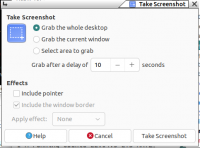
<mate-screenshot.png>
OpenSCAD mailing list
To unsubscribe send an email to discuss-leave@lists.openscad.org
On Macs screenshots are done with Cmd+shift+5
-Revar
> On Oct 17, 2025, at 1:56 PM, larry via Discuss <discuss@lists.openscad.org> wrote:
>
> On Fri, 2025-10-17 at 13:40 -0400, Kevin Cole via Discuss wrote:
>>
>> The usual YMMV caveat applies, but on Linux, I prefer KDE's Spectacle
>> [https://docs.kde.org/stable5/en/spectacle/spectacle/using.html] as my
>> screenshot program over Pop! OS's "baked-in" screenshot program
>
> I'm running Ubuntu 22.04.5 LTS MATE
>
> I use
>
> mate-screenshot -i
>
> If I don't need the delay I just use
>
> mate-screenshot -a
>
>
>
> <mate-screenshot.png>
> _______________________________________________
> OpenSCAD mailing list
> To unsubscribe send an email to discuss-leave@lists.openscad.org

FH
Father Horton
Sat, Oct 18, 2025 12:37 AM
Or Cmd+shift+4 for part of the screen.
On Fri, Oct 17, 2025 at 7:13 PM Revar Desmera via Discuss <
discuss@lists.openscad.org> wrote:
On Macs screenshots are done with Cmd+shift+5
-Revar
On Oct 17, 2025, at 1:56 PM, larry via Discuss <
On Fri, 2025-10-17 at 13:40 -0400, Kevin Cole via Discuss wrote:
The usual YMMV caveat applies, but on Linux, I prefer KDE's Spectacle
[https://docs.kde.org/stable5/en/spectacle/spectacle/using.html] as my
screenshot program over Pop! OS's "baked-in" screenshot program
I'm running Ubuntu 22.04.5 LTS MATE
I use
mate-screenshot -i
If I don't need the delay I just use
mate-screenshot -a
<mate-screenshot.png>
OpenSCAD mailing list
To unsubscribe send an email to discuss-leave@lists.openscad.org
Or Cmd+shift+4 for part of the screen.
On Fri, Oct 17, 2025 at 7:13 PM Revar Desmera via Discuss <
discuss@lists.openscad.org> wrote:
> On Macs screenshots are done with Cmd+shift+5
>
> -Revar
>
> > On Oct 17, 2025, at 1:56 PM, larry via Discuss <
> discuss@lists.openscad.org> wrote:
> >
> > On Fri, 2025-10-17 at 13:40 -0400, Kevin Cole via Discuss wrote:
> >>
> >> The usual YMMV caveat applies, but on Linux, I prefer KDE's Spectacle
> >> [https://docs.kde.org/stable5/en/spectacle/spectacle/using.html] as my
> >> screenshot program over Pop! OS's "baked-in" screenshot program
> >
> > I'm running Ubuntu 22.04.5 LTS MATE
> >
> > I use
> >
> > mate-screenshot -i
> >
> > If I don't need the delay I just use
> >
> > mate-screenshot -a
> >
> >
> >
> > <mate-screenshot.png>
> > _______________________________________________
> > OpenSCAD mailing list
> > To unsubscribe send an email to discuss-leave@lists.openscad.org
> _______________________________________________
> OpenSCAD mailing list
> To unsubscribe send an email to discuss-leave@lists.openscad.org
L
larry
Sat, Oct 18, 2025 5:10 AM
On Fri, 2025-10-17 at 17:12 -0700, Revar Desmera via Discuss wrote:
On Macs screenshots are done with Cmd+shift+5
I can do a screenshot with 'FN+PrtScr' too, but I want more control. As
it is, I have two batch files that are accesses by icons in my top
panel.
On Oct 17, 2025, at 1:56 PM, larry via Discuss discuss@lists.openscad.org wrote:
On Fri, 2025-10-17 at 13:40 -0400, Kevin Cole via Discuss wrote:
The usual YMMV caveat applies, but on Linux, I prefer KDE's Spectacle
[https://docs.kde.org/stable5/en/spectacle/spectacle/using.html] as my
screenshot program over Pop! OS's "baked-in" screenshot program
I'm running Ubuntu 22.04.5 LTS MATE
I use
mate-screenshot -i
If I don't need the delay I just use
mate-screenshot -a
<mate-screenshot.png>
OpenSCAD mailing list
To unsubscribe send an email to discuss-leave@lists.openscad.org
On Fri, 2025-10-17 at 17:12 -0700, Revar Desmera via Discuss wrote:
> On Macs screenshots are done with Cmd+shift+5
>
I can do a screenshot with 'FN+PrtScr' too, but I want more control. As
it is, I have two batch files that are accesses by icons in my top
panel.
> > On Oct 17, 2025, at 1:56 PM, larry via Discuss <discuss@lists.openscad.org> wrote:
> >
> > On Fri, 2025-10-17 at 13:40 -0400, Kevin Cole via Discuss wrote:
> > >
> > > The usual YMMV caveat applies, but on Linux, I prefer KDE's Spectacle
> > > [https://docs.kde.org/stable5/en/spectacle/spectacle/using.html] as my
> > > screenshot program over Pop! OS's "baked-in" screenshot program
> >
> > I'm running Ubuntu 22.04.5 LTS MATE
> >
> > I use
> >
> > mate-screenshot -i
> >
> > If I don't need the delay I just use
> >
> > mate-screenshot -a
> >
> >
> >
> > <mate-screenshot.png>
> > _______________________________________________
> > OpenSCAD mailing list
> > To unsubscribe send an email to discuss-leave@lists.openscad.org
> _______________________________________________
> OpenSCAD mailing list
> To unsubscribe send an email to discuss-leave@lists.openscad.org
>

JH
Jeffrey Hayes
Wed, Oct 22, 2025 8:23 PM
why not just use menu Edit > Copy Viewport Image .. that puts the image onto the clipboard and you can paste that directly into a GitHub editor to have it automatically upload or on windows use the builtin Snipping Tool to screen shot the whole screen, a window, or a selection it is much better than what Print Screen used to do (or, i guess that should be present tense. and for Mac OS there are a dozen great snapshot tools - is this discussion not about reinventing the wheel ? it is possible i have not read deeply enough and so have missed something .. sorry if so but i think these tools already exist -- jeff is vulcan_ in the cloud On Oct. 17, 2025, at 7:11 p.m., Jordan Brown via Discuss discuss@lists.openscad.org wrote: In a GitHub issue, a commenter had trouble adding a screen shot to the issue, and that led into a small discussion of how to take and add screen shots. It was off-topic for the issue, but seems worth talking about, for both GitHub and e-mail.
why not just use menu Edit > Copy Viewport Image .. that puts the image onto the clipboard and you can paste that directly into a GitHub editor to have it automatically upload or on windows use the builtin Snipping Tool to screen shot the whole screen, a window, or a selection it is much better than what Print Screen used to do (or, i guess that should be present tense. and for Mac OS there are a dozen great snapshot tools - is this discussion not about reinventing the wheel ? it is possible i have not read deeply enough and so have missed something .. sorry if so but i think these tools already exist -- jeff is vulcan_ in the cloud On Oct. 17, 2025, at 7:11 p.m., Jordan Brown via Discuss <discuss@lists.openscad.org> wrote: In a GitHub issue, a commenter had trouble adding a screen shot to the issue, and that led into a small discussion of how to take and add screen shots. It was off-topic for the issue, but seems worth talking about, for both GitHub and e-mail.
JB
Jordan Brown
Wed, Oct 22, 2025 9:45 PM
On 10/22/2025 1:23 PM, Jeffrey Hayes via Discuss wrote:
why not just use menu Edit > Copy Viewport Image .. that puts the
image onto the clipboard and you can paste that directly into a GitHub
editor to have it automatically upload
As I said in the original message... image size. Win+Shift+S lets you
pick a rectangle to snip, which is usually a lot more convenient than
resizing your window so that CVI will grab the size you want.
Also, CVI has a small bug that messes up the top pixel or so and the
right pixel or so.
Also, historically, CVI has copied transparency - when you had a
transparent object on the screen, the resulting image would be
transparent and the final display would be not at all what you wanted.
Ref #3828 https://github.com/openscad/openscad/issues/3828. I can't
duplicate that problem now, so presumably something has changed, but I
can't replicate it even on an older OpenSCAD and that suggests that it's
a platform difference of some kind, rather than something that's been
fixed in OpenSCAD.
or on windows use the builtin Snipping Tool to screen shot the whole
screen, a window, or a selection
it is much better than what Print Screen used to do (or, i guess that
should be present tense.
I believe that Win+Shift+S, my primary recommendation, is the Snipping
Tool.
and for Mac OS there are a dozen great snapshot tools - is this
discussion not about reinventing the wheel ? it is possible i have not
read deeply enough and so have missed something .. sorry if so
but i think these tools already exist
The point was not about reinventing anything, but about discussing the
existing alternatives.
Plus the fact that if you get the image into the clipboard, you can just
paste it into GitHub or email without worrying about file formats.
On 10/22/2025 1:23 PM, Jeffrey Hayes via Discuss wrote:
> why not just use menu Edit > Copy Viewport Image .. that puts the
> image onto the clipboard and you can paste that directly into a GitHub
> editor to have it automatically upload
As I said in the original message... image size. Win+Shift+S lets you
pick a rectangle to snip, which is usually a lot more convenient than
resizing your window so that CVI will grab the size you want.
Also, CVI has a small bug that messes up the top pixel or so and the
right pixel or so.
Also, historically, CVI has copied transparency - when you had a
transparent object on the screen, the resulting image would be
transparent and the final display would be not at all what you wanted.
Ref #3828 <https://github.com/openscad/openscad/issues/3828>. I can't
duplicate that problem now, so presumably something has changed, but I
can't replicate it even on an older OpenSCAD and that suggests that it's
a platform difference of some kind, rather than something that's been
fixed in OpenSCAD.
> or on windows use the builtin Snipping Tool to screen shot the whole
> screen, a window, or a selection
> it is much better than what Print Screen used to do (or, i guess that
> should be present tense.
I believe that Win+Shift+S, my primary recommendation, *is* the Snipping
Tool.
> and for Mac OS there are a dozen great snapshot tools - is this
> discussion not about reinventing the wheel ? it is possible i have not
> read deeply enough and so have missed something .. sorry if so
> but i think these tools already exist
The point was not about reinventing anything, but about discussing the
existing alternatives.
Plus the fact that if you get the image into the clipboard, you can just
paste it into GitHub or email without worrying about file formats.

M
mikeonenine (at) web.de
Thu, Oct 23, 2025 7:37 PM
On 10/22/2025 1:23 PM, Jeffrey Hayes via Discuss wrote:
why not just use menu Edit > Copy Viewport Image .. that puts the
image onto the clipboard and you can paste that directly into a GitHub
editor to have it automatically upload
As I said in the original message... image size. Win+Shift+S lets you
pick a rectangle to snip, which is usually a lot more convenient than
resizing your window so that CVI will grab the size you want.
Also, CVI has a small bug that messes up the top pixel or so and the
right pixel or so.
Also, historically, CVI has copied transparency - when you had a
transparent object on the screen, the resulting image would be
transparent and the final display would be not at all what you wanted.
Ref #3828 https://github.com/openscad/openscad/issues/3828. I can't
duplicate that problem now, so presumably something has changed, but I
can't replicate it even on an older OpenSCAD and that suggests that it's
a platform difference of some kind, rather than something that's been
fixed in OpenSCAD.
or on windows use the builtin Snipping Tool to screen shot the whole
screen, a window, or a selection
it is much better than what Print Screen used to do (or, i guess that
should be present tense.
I believe that Win+Shift+S, my primary recommendation, is the Snipping
Tool.
and for Mac OS there are a dozen great snapshot tools - is this
discussion not about reinventing the wheel ? it is possible i have not
read deeply enough and so have missed something .. sorry if so
but i think these tools already exist
The point was not about reinventing anything, but about discussing the
existing alternatives.
Plus the fact that if you get the image into the clipboard, you can just
paste it into GitHub or email without worrying about file formats.
I am now using Win+Shift+S instead of Print and Copy Viewport. It’s very convenient and offers four modes instead of one.
However, all these methods read what’s on the monitor screen, giving a more or less pixellated image, depending on how many pixels the image is given.
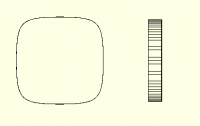
See the jagged elliptogon and the spur gear with lines of different widths and some teeth missing altogether in the attached image. It looks messy.
It would also be nice to be able to do the outline of the gear with thicker lines, and the teeth with thinner lines, but that’s not possible.
Is there some way of getting a clean image that would also print on paper with lines as specified in the code?
Jordan Brown wrote:
> On 10/22/2025 1:23 PM, Jeffrey Hayes via Discuss wrote:
>
> > why not just use menu Edit > Copy Viewport Image .. that puts the
> > image onto the clipboard and you can paste that directly into a GitHub
> > editor to have it automatically upload
>
> As I said in the original message... image size. Win+Shift+S lets you
> pick a rectangle to snip, which is usually a lot more convenient than
> resizing your window so that CVI will grab the size you want.
>
> Also, CVI has a small bug that messes up the top pixel or so and the
> right pixel or so.
>
> Also, historically, CVI has copied transparency - when you had a
> transparent object on the screen, the resulting image would be
> transparent and the final display would be not at all what you wanted.
> Ref #3828 <https://github.com/openscad/openscad/issues/3828>. I can't
> duplicate that problem now, so presumably something has changed, but I
> can't replicate it even on an older OpenSCAD and that suggests that it's
> a platform difference of some kind, rather than something that's been
> fixed in OpenSCAD.
>
> > or on windows use the builtin Snipping Tool to screen shot the whole
> > screen, a window, or a selection
> > it is much better than what Print Screen used to do (or, i guess that
> > should be present tense.
>
> I believe that Win+Shift+S, my primary recommendation, *is* the Snipping
> Tool.
>
> > and for Mac OS there are a dozen great snapshot tools - is this
> > discussion not about reinventing the wheel ? it is possible i have not
> > read deeply enough and so have missed something .. sorry if so
> > but i think these tools already exist
>
> The point was not about reinventing anything, but about discussing the
> existing alternatives.
>
> Plus the fact that if you get the image into the clipboard, you can just
> paste it into GitHub or email without worrying about file formats.
I am now using Win+Shift+S instead of Print and Copy Viewport. It’s very convenient and offers four modes instead of one.
However, all these methods read what’s on the monitor screen, giving a more or less pixellated image, depending on how many pixels the image is given.
See the jagged elliptogon and the spur gear with lines of different widths and some teeth missing altogether in the attached image. It looks messy.
It would also be nice to be able to do the outline of the gear with thicker lines, and the teeth with thinner lines, but that’s not possible.
Is there some way of getting a clean image that would also print on paper with lines as specified in the code?
JB
Jordan Brown
Thu, Oct 23, 2025 11:22 PM
On 10/23/2025 12:37 PM, Caddiy via Discuss wrote:
See the jagged elliptogon and the spur gear with lines of different
widths and some teeth missing altogether in the attached image. It
looks messy.
It would also be nice to be able to do the outline of the gear with
thicker lines, and the teeth with thinner lines, but that’s not possible.
Is there some way of getting a clean image that would also print on
paper with lines as specified in the code?
No, or at least not in general.
My first thought was "export to SVG", and that will work for the shape
on the left, but when you collapse the shape on the right to a 2D object
all of those interior lines will go away. If you made things different
colors, that might help.
OpenSCAD doesn't really do 2D, not in the sense of a program like
Inkscape. It has no notion of lines, only of filled shapes.
You can try projection() to turn your model into a 2D object and then
export as SVG, but with some experiments you'll find that's a limited
solution.
For a pipe-dream answer, you can look at
OEP7: Mixed Dimension Geometry Support
https://github.com/openscad/openscad/wiki/OEP7:-Mixed-Dimension-Geometry-Support
Except for those... render it as large as possible, so that the pixels
are as small as possible compared to the image.
On 10/23/2025 12:37 PM, Caddiy via Discuss wrote:
>
> See the jagged elliptogon and the spur gear with lines of different
> widths and some teeth missing altogether in the attached image. It
> looks messy.
>
> It would also be nice to be able to do the outline of the gear with
> thicker lines, and the teeth with thinner lines, but that’s not possible.
>
> Is there some way of getting a clean image that would also print on
> paper with lines as specified in the code?
>
No, or at least not in general.
My first thought was "export to SVG", and that will work for the shape
on the left, but when you collapse the shape on the right to a 2D object
all of those interior lines will go away. If you made things different
colors, that might help.
OpenSCAD doesn't really do 2D, not in the sense of a program like
Inkscape. It has no notion of lines, only of filled shapes.
You can try projection() to turn your model into a 2D object and then
export as SVG, but with some experiments you'll find that's a limited
solution.
For a pipe-dream answer, you can look at
OEP7: Mixed Dimension Geometry Support
<https://github.com/openscad/openscad/wiki/OEP7:-Mixed-Dimension-Geometry-Support>
Except for those... render it as large as possible, so that the pixels
are as small as possible compared to the image.